Adding a background color or image directly to a WPBakery column usually doesn’t give the result you’d expect. The best approach is to add the background to an inner row placed inside the column.
Why You Shouldn’t Apply Backgrounds Directly to Columns
WPBakery adds space between columns using padding on the columns. When you add a background to a column, the background fills that padding as well, so the backgrounds of neighboring columns touch with no visible gap between them.
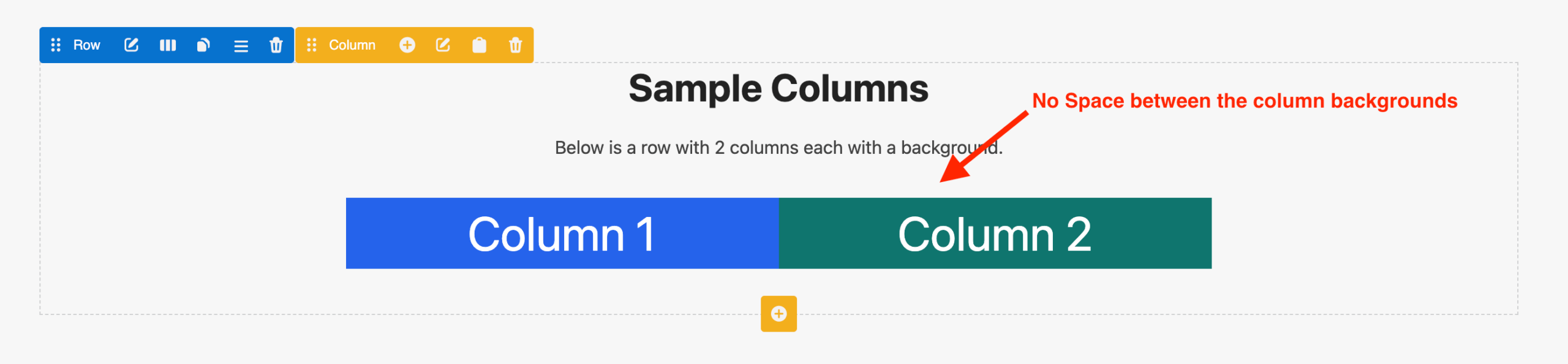
Using Inner Rows for Column Backgrounds
Inner rows act as a wrapper inside each column, giving you a separate layer for the background while the column’s padding keeps the spacing between columns. Here’s how to set one up:
- Add an Inner Row inside the column.
- Edit the inner row and open the Design Options tab.
- Set the Background Color (or background image) and add some padding so your content doesn’t touch the edges.
- Add your content inside the inner row.
Only using theme elements? If your columns only contain theme elements such as Icon Boxes, a Grid Container is usually the better choice. Adding an inner row to every column gets hard to work with, especially with three or four columns in the backend editor.
Just need an image? If you just want an image to fill the column rather than sit behind content, see How to Add a Stretched Image Inside a WPBakery Column.
Making Inner Row Backgrounds the Same Height
By default each inner row is only as tall as its content, so if one column has more content than another the backgrounds will be different heights. To make them match:
- Edit the parent row (the main row holding the columns) and enable Equal height.
- Edit each inner row and enable Fill Column.
Equal height makes the columns the same height, and Fill Column stretches the inner row to fill its column. Both settings are required.
Using a Grid Container Instead of Columns
If you’re only placing elements side by side, such as Icon Boxes, you may not need columns at all. The theme’s Grid Container elements space items using a gap setting instead of padding, so you can add a background directly to each element and the space between them is preserved.
The Grid Container also allows for greater control responsively of the columns and gap, plus items are equal height by default. This also means less markup and fewer settings to manage than a row with columns and inner rows.