The Total theme includes an “Image Gallery” function that allows you to assign images to any post. By default these images are used in the theme for functions like Gallery format blog posts but it can also be used to display images when using a Dynamic Template so you can easily manage the design of a post type like a portfolio or gallery across many posts via a single template compared to manually inserting galleries onto every post.
Adding Images to Your Post Image Gallery
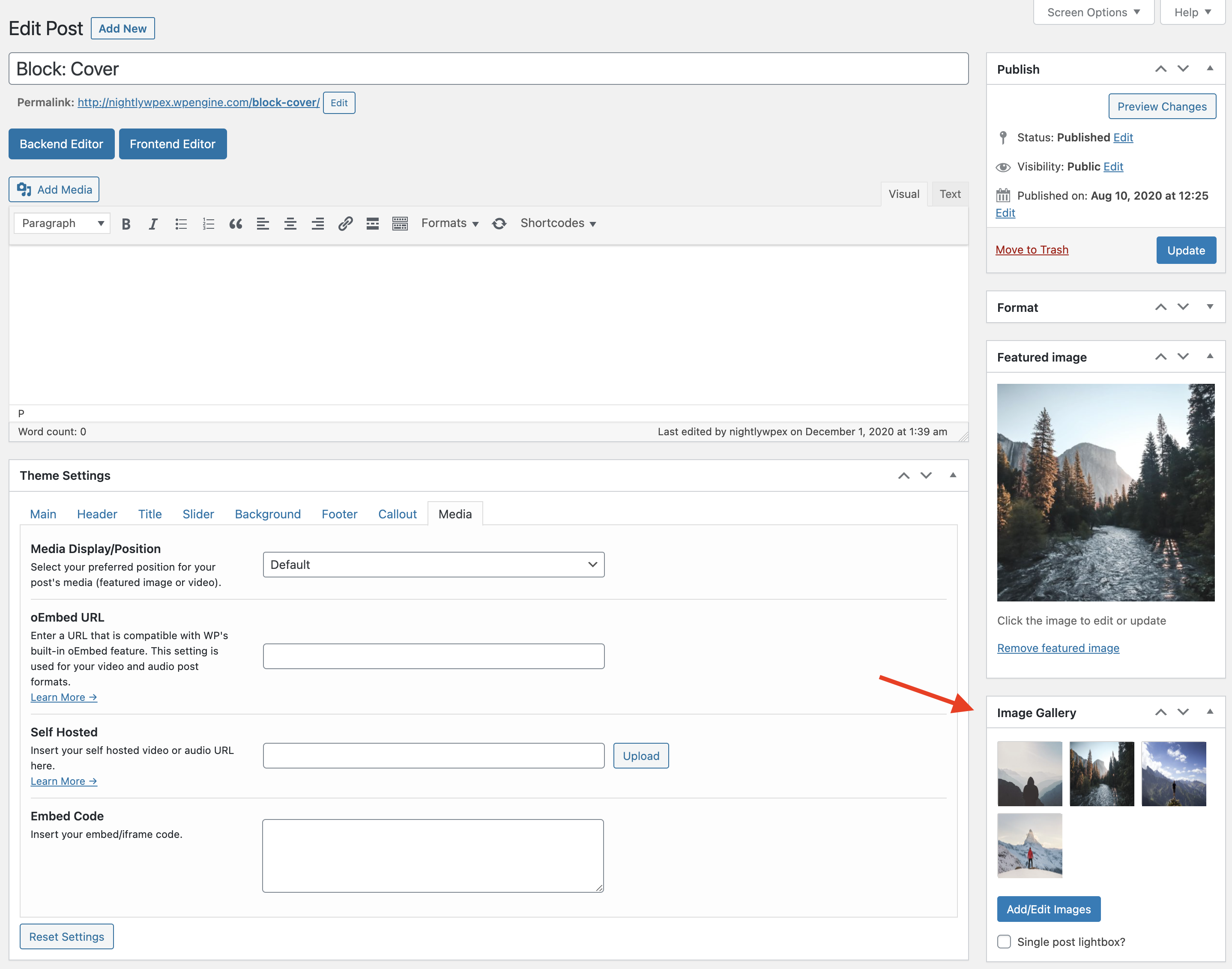
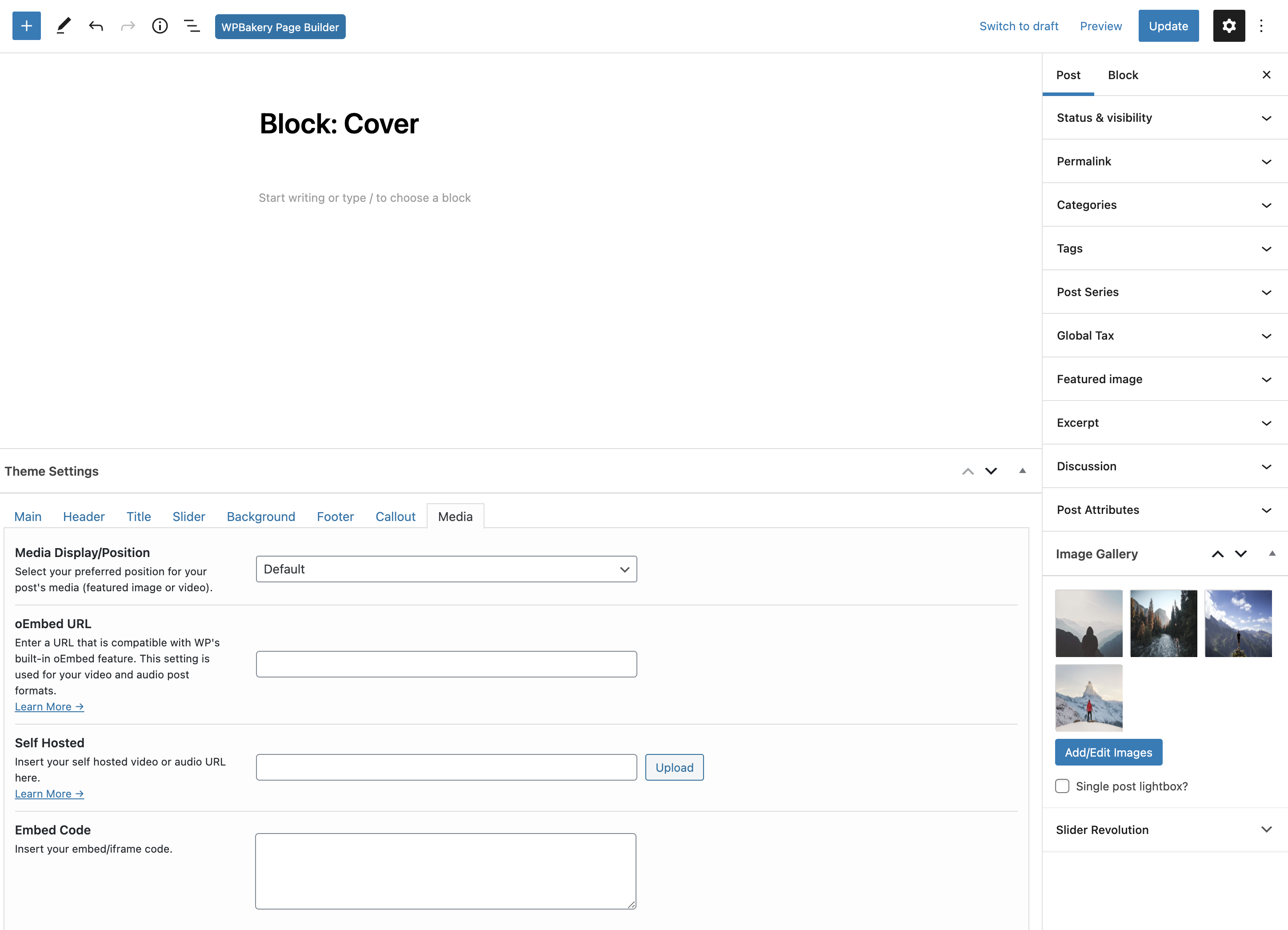
When editing a post or page you will be able to see the Image Gallery on the right hand side (you can drag it around to wherever you want including under the editor on the left). Simply click on the Add/Edit Images button to select the images to be included in the gallery. To remove any images hover over the image and click the “x” button. Now you will have images assigned to the post as a “gallery”.
Display Your Image Gallery
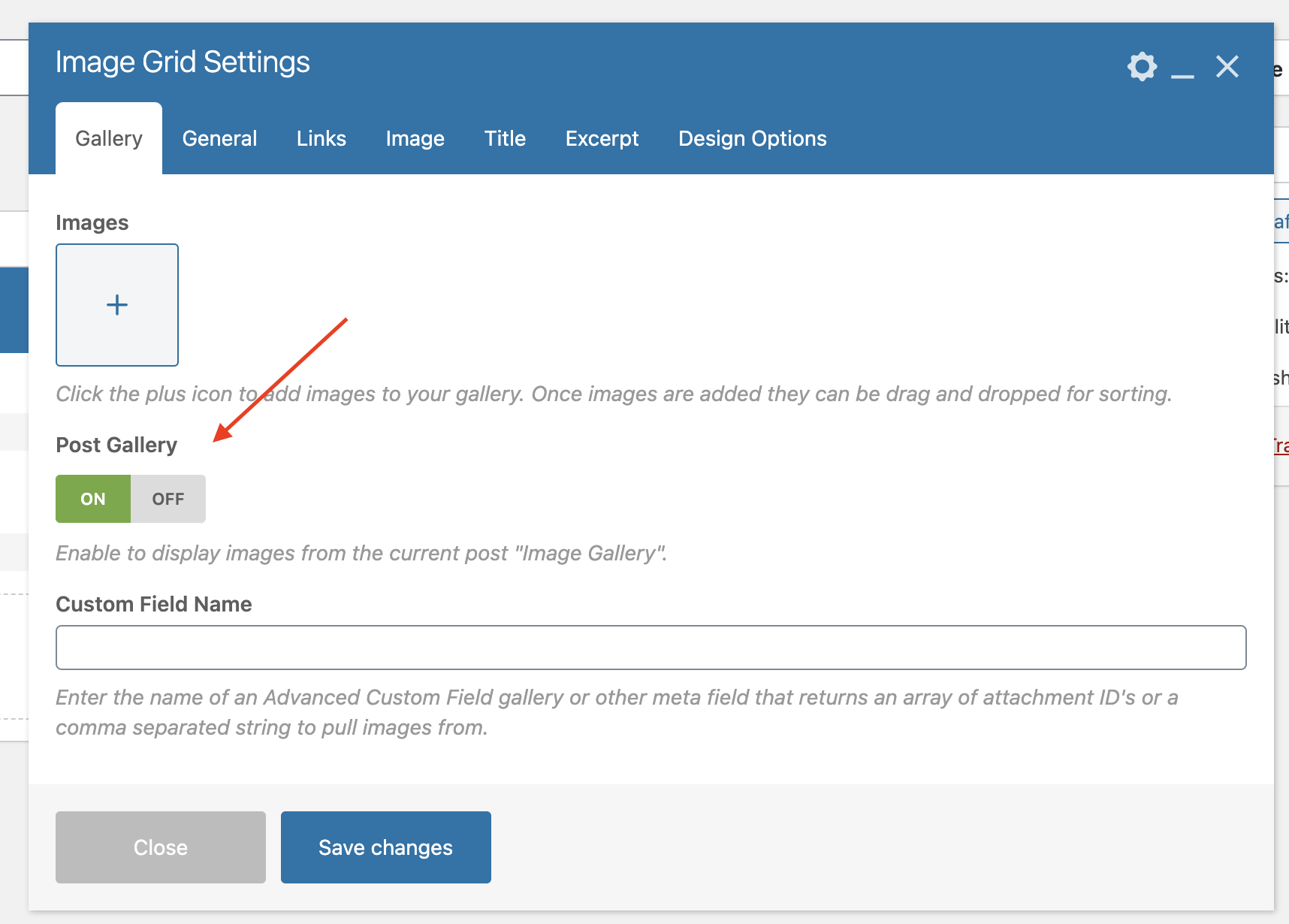
To display your gallery images you can use a variety of Total modules including the Image Grid, Image Slider or Image Carousel module. When you insert the module simply toggle on the “Post Gallery” setting.