
The WPC Smart Quick View plugin for WooCommerce lets you add quick view popups to your products, making your store more user-friendly. It works seamlessly with default WooCommerce product archives and also offers a shortcode for use anywhere, perfect for the Total theme’s Card Builder.
In this guide, we’ll show you how to integrate the plugin with custom product cards.
Step 1: Enable & Setup the WPC Smart Quick View Plugin
Start by downloading and installing the WPC Smart Quick View plugin. It’s free from the WordPress repository, so simply go to Plugins > Add New in your dashboard, search for the plugin, then install and activate it.
Once the plugin is active, adjust a few settings for better integration:
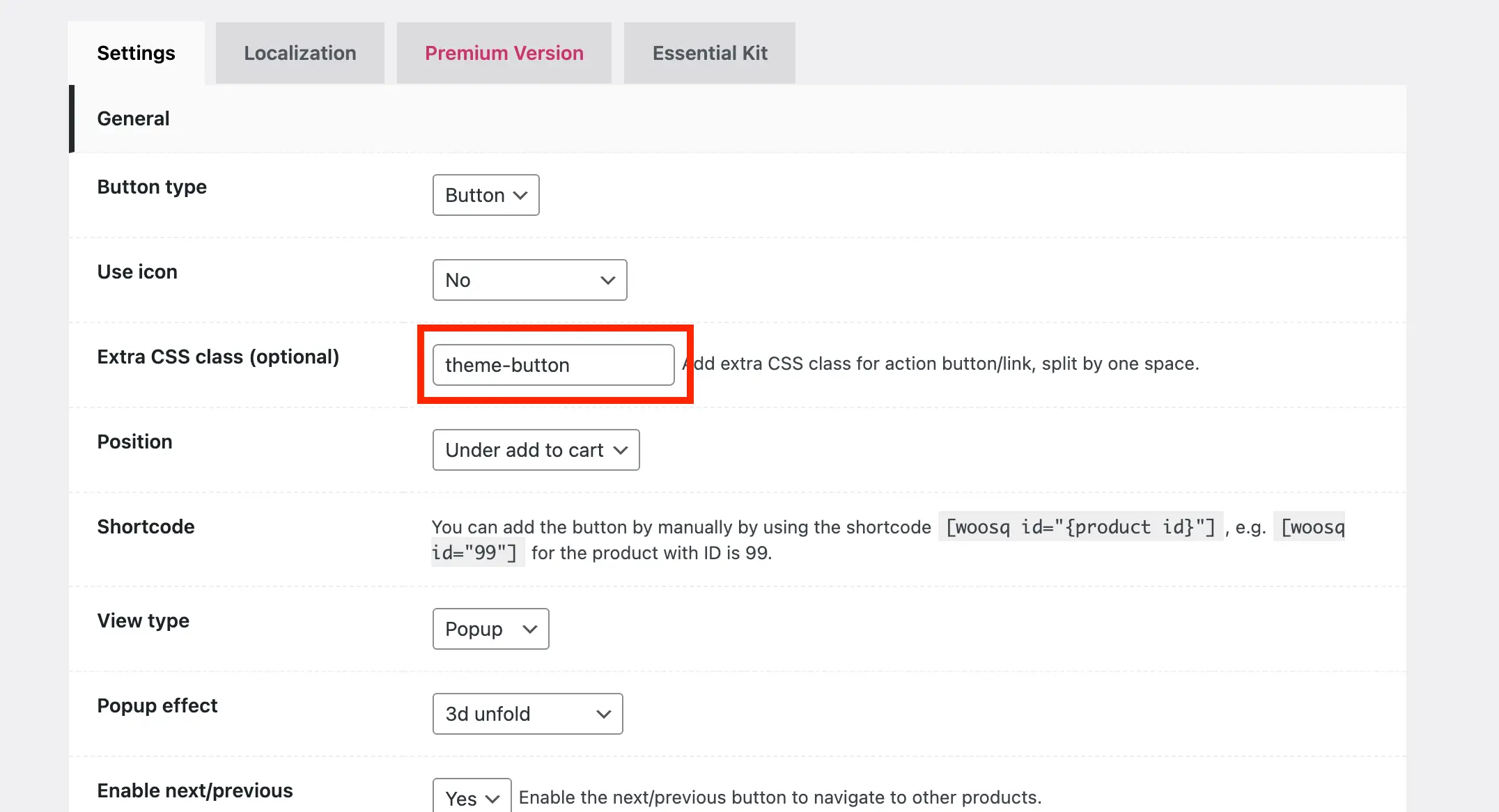
Add the Theme Button classname to the Extra CSS class field
In the main plugin settings, locate the Extra CSS Class field. Enter theme-button here so the quick view button adopts your site’s button styling.
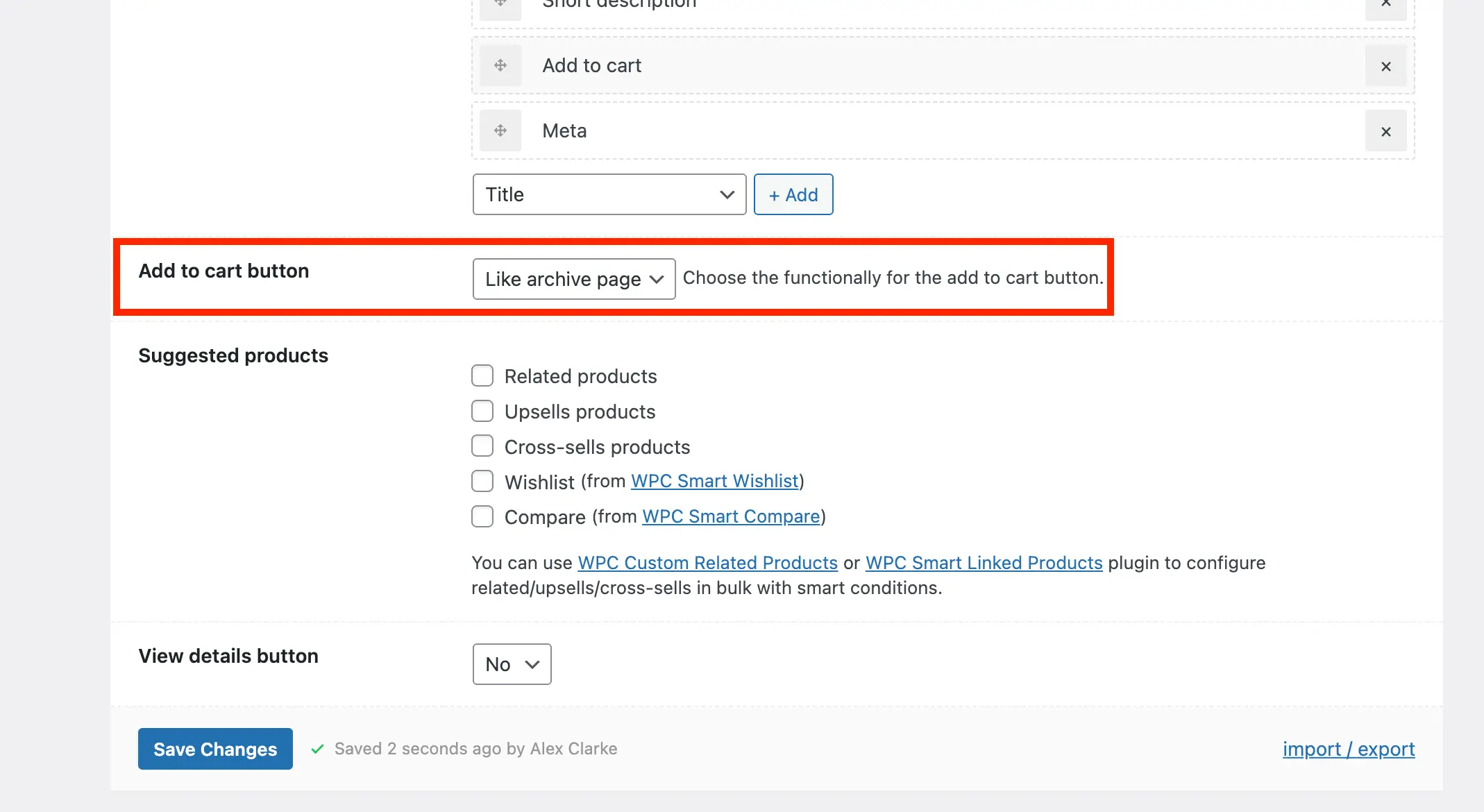
Alter the Add to Cart Button Functionality
Change the Add to Cart Button setting to Like archive page. This ensures the Add to Cart button in the quick view popup works with Ajax, keeping users on the current page instead of redirecting them to the single product page.
Step 2: Adding the Quick View Button to Your Custom Product Card
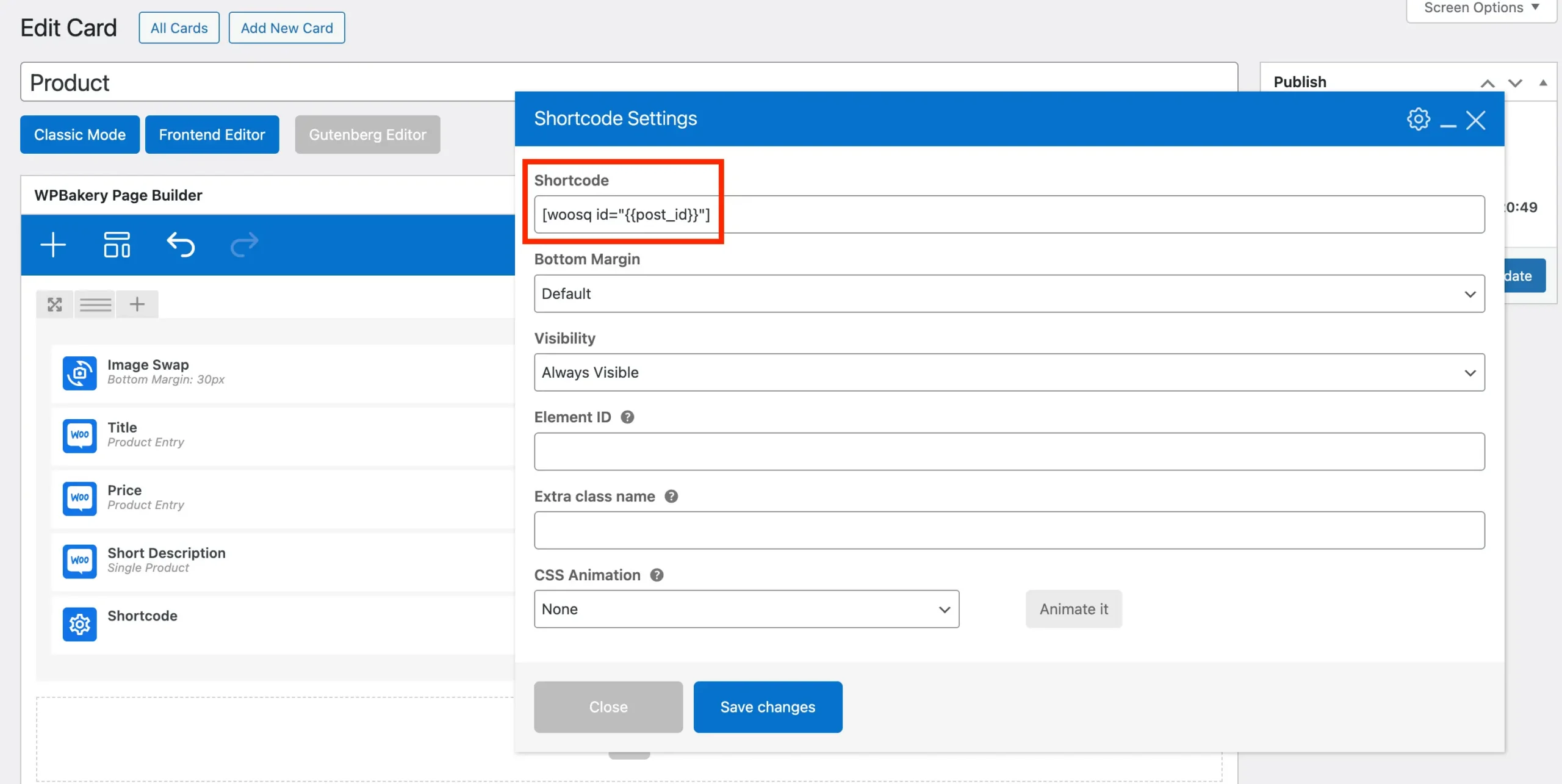
Now that the plugin is installed and configured, you can add the quick view button to your custom card. To do this, edit your card, insert a Shortcode element, and enter the following value:
[woosq id="{{post_id}}"]We use the plugin’s woosq shortcode and add the theme’s post_id dynamic variable to automatically set the product ID.
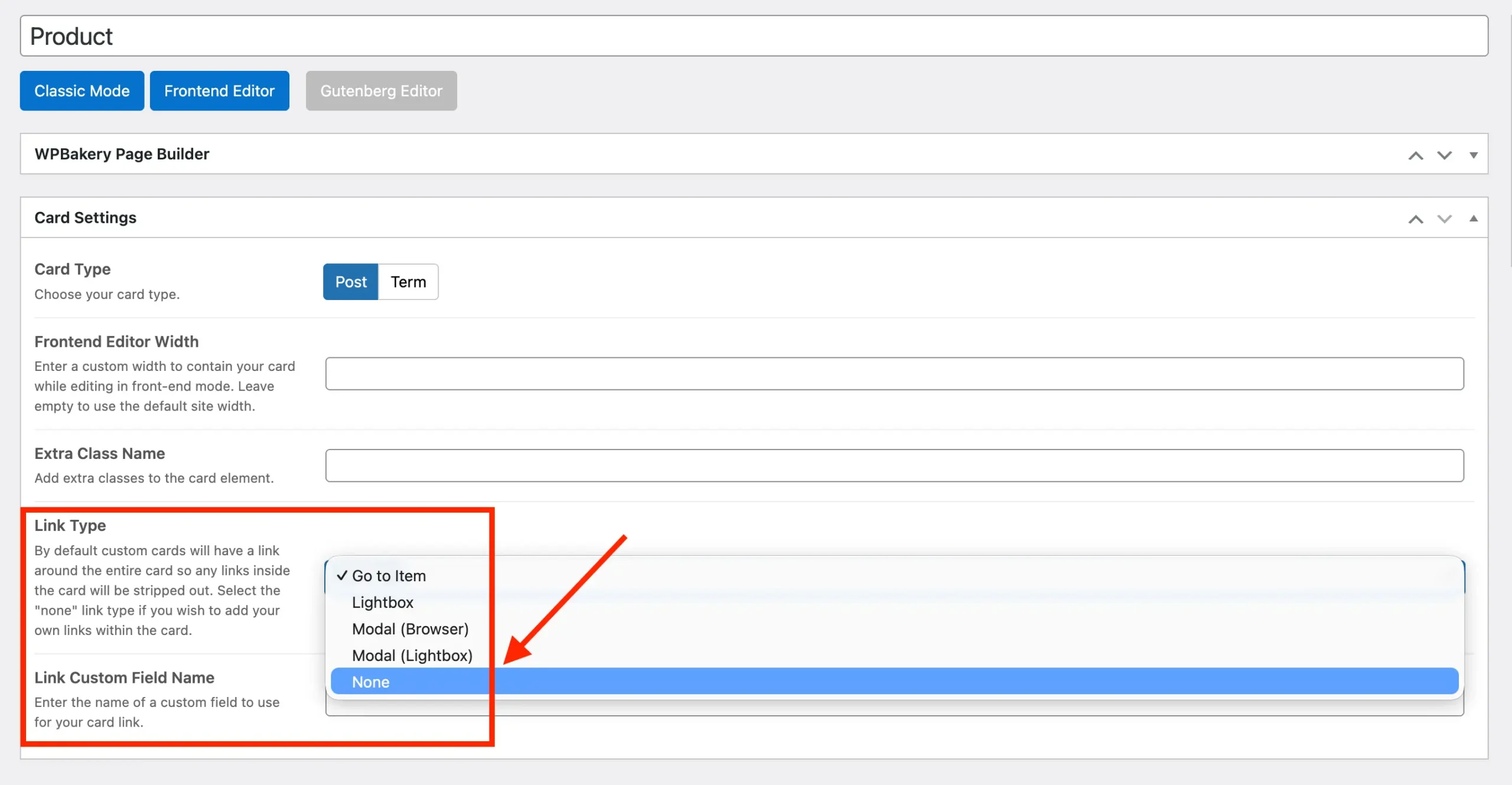
By default, all custom cards link to the post. If you want to add clickable buttons or other interactive elements inside your card, set the “Link Type” setting to”None”.
Bonus: Optimize the WPC Smart Quick View Plugin Script Loading
By default, the WPC Smart Quick View plugin loads its CSS and JS files across your entire site to ensure functionality everywhere. You can optimize this by loading the scripts only when needed. Use the snippet below as a starting point:
/**
 * Only load WPC Smart Quick View scripts on pages showing WooCommerce products.
 */
add_action( 'wp_enqueue_scripts', function() {
	// Return if the WPC Smart Quick View is not active of the plugin class instance is not callable
	if ( ! class_exists( 'WPCleverWoosq', false ) || ! is_callable( [ 'WPCleverWoosq', 'instance' ] ) ) {
		return;
	}

	// Make sure to adjust this check to fit your site needs
	$should_enqueue_quickview = ( function_exists( 'is_woocommerce' ) && is_woocommerce() )
		|| ( function_exists( 'is_cart' ) && is_cart() );

	// Remove the WPC Smart Quick View scripts if not needed
	if ( ! $should_enqueue_quickview ) {
		$wpc_smart_quickview_instance = \WPCleverWoosq::instance();
		remove_action( 'wp_enqueue_scripts', [ $wpc_smart_quickview_instance, 'enqueue_scripts' ] );
	}
}, 1 );
Update the $showing_products variable to match your site. The example above uses is_woocommerce() and is_cart(), which returns true for WooCommerce archives, single products and the cart. If you display products on custom pages, like the homepage, adjust the code to include those pages.