Using TranslatePress you can easily translate each page from your Total theme powered website directly from the front-end.
The translation is done in an intuitive interface (similar to the Customizer) by simply navigating the site page by page and adding the translations.
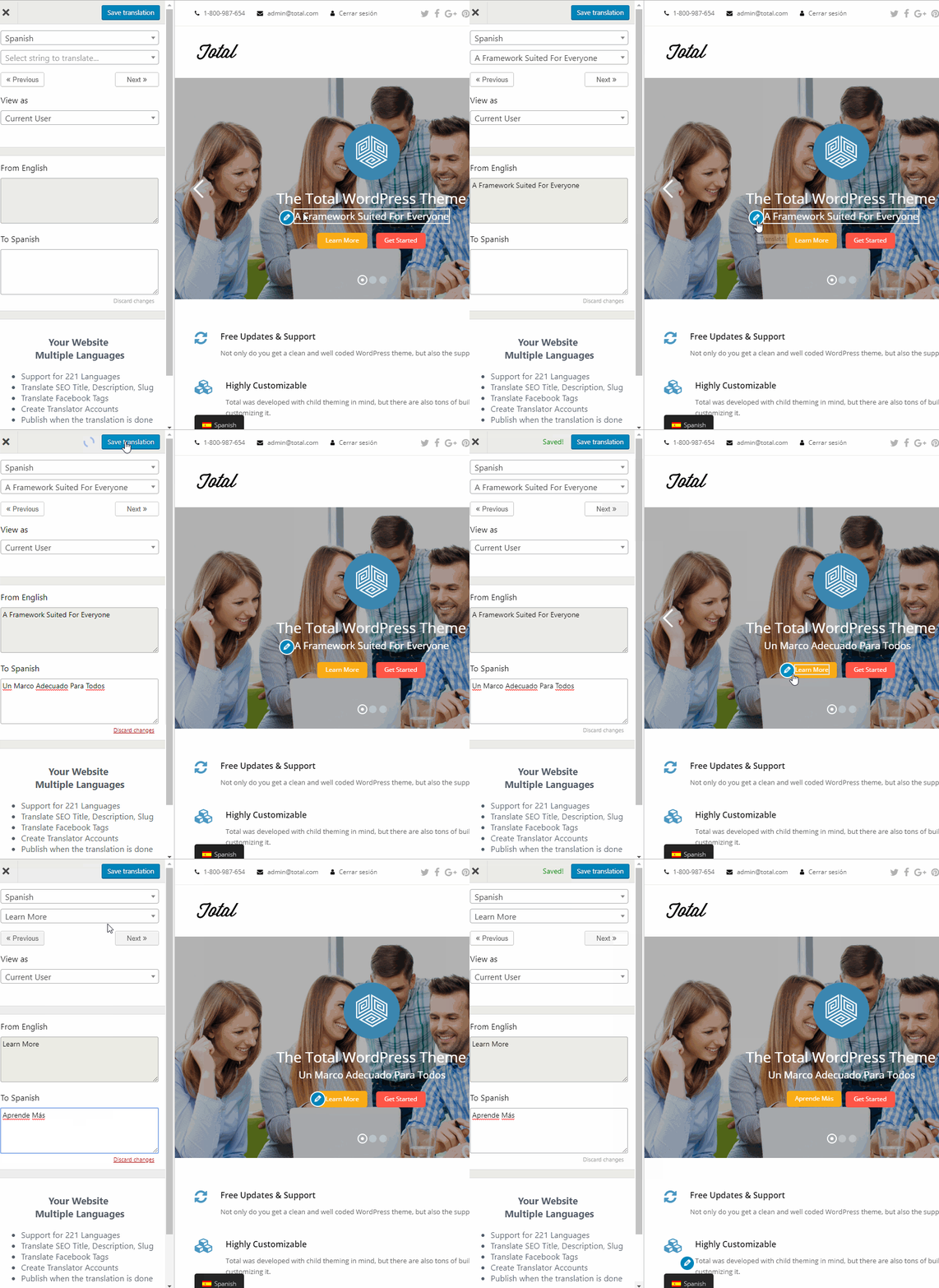
This includes output from shortcodes, paragraphs with formatting, forms, buttons, theme strings and more.
TranslatePress Settings
After installing TranslatePress simply navigate to the Settings page (under Settings > TranslatePress) and add an extra language to make your site multilingual.
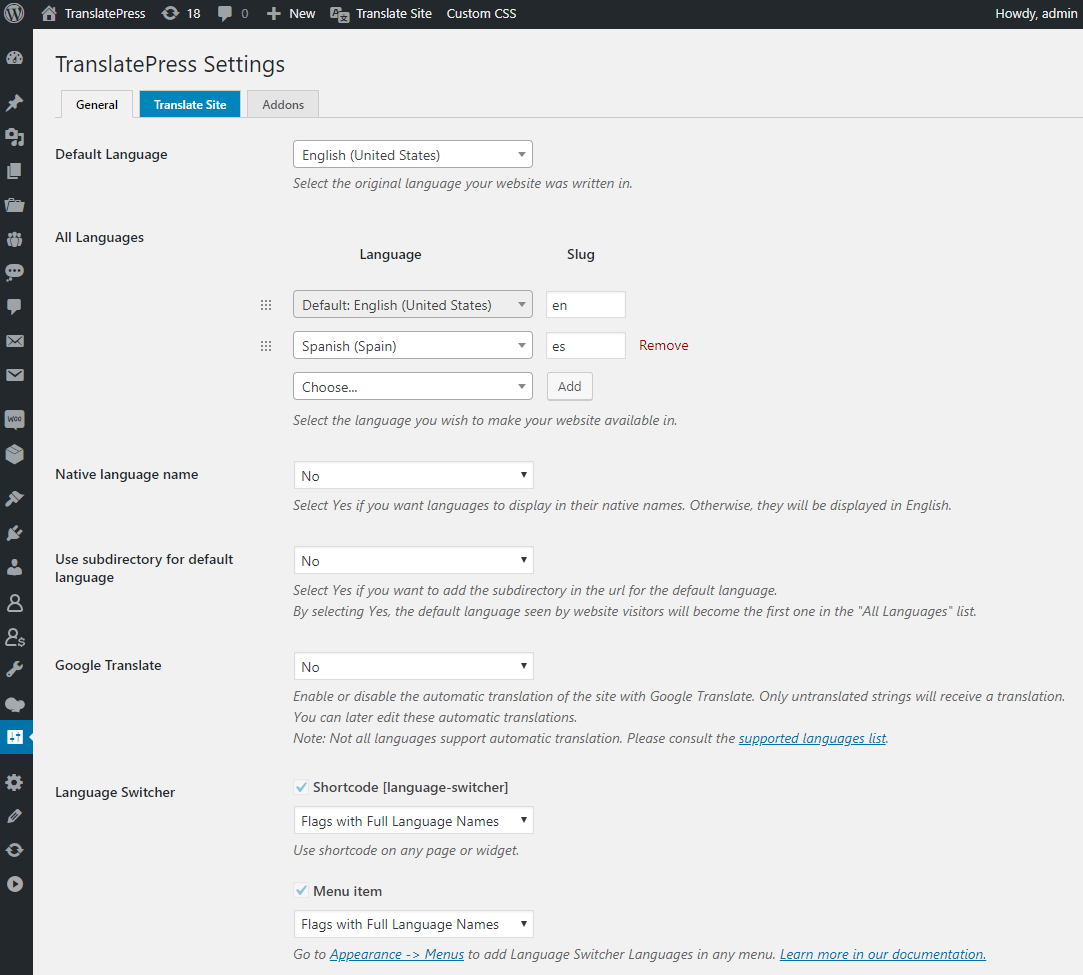
You have 3 options to display the language switcher:
- Shortcode: use the [language-switcher] shortcode
- Menu item: go to Appearance > Menus to add Language Switcher in any menu
- Floating language selection: Having a floating dropdown following the user on every page
After saving the settings, click the “Translate Site” tab and start translating your website from the front-end.
Translating Total Theme Websites
To translate any string on a page simply hover over it. An edit icon (pencil) will appear allowing you to enter the translation.
Once entered, click the “Save translation” button and the translated text will be displayed instantly.
You can find out more about TranslatePress and browse their documentation here.