Your WooCommerce product URLs affect more than just how links look. They influence search engine rankings, click-through rates, and how easy it is for customers to understand and trust your store.
In this guide, you’ll learn why changing the WooCommerce product slug matters and how to change the default product permalink structure site-wide, without writing any code.
What Is the WooCommerce Product Slug?
In WooCommerce, the product slug is the word that appears in the product URL before the product name. By default, WooCommerce uses the word product, which creates URLs like this:
https://example.com/product/sample-product/Why Change the Default Product Slug in WooCommerce?
Sometimes the default product slug doesn’t fit the type of store you run. For example, if your store only sells handcrafted candles, it makes more sense to replace the slug with something like candles. This creates cleaner, more descriptive URLs, such as:
https://example.com/candles/lavender-breeze/Changing the slug helps your URLs match your brand and makes them easier for customers and search engines to understand.
How to Change the Product Slug in WooCommerce (Site-Wide)
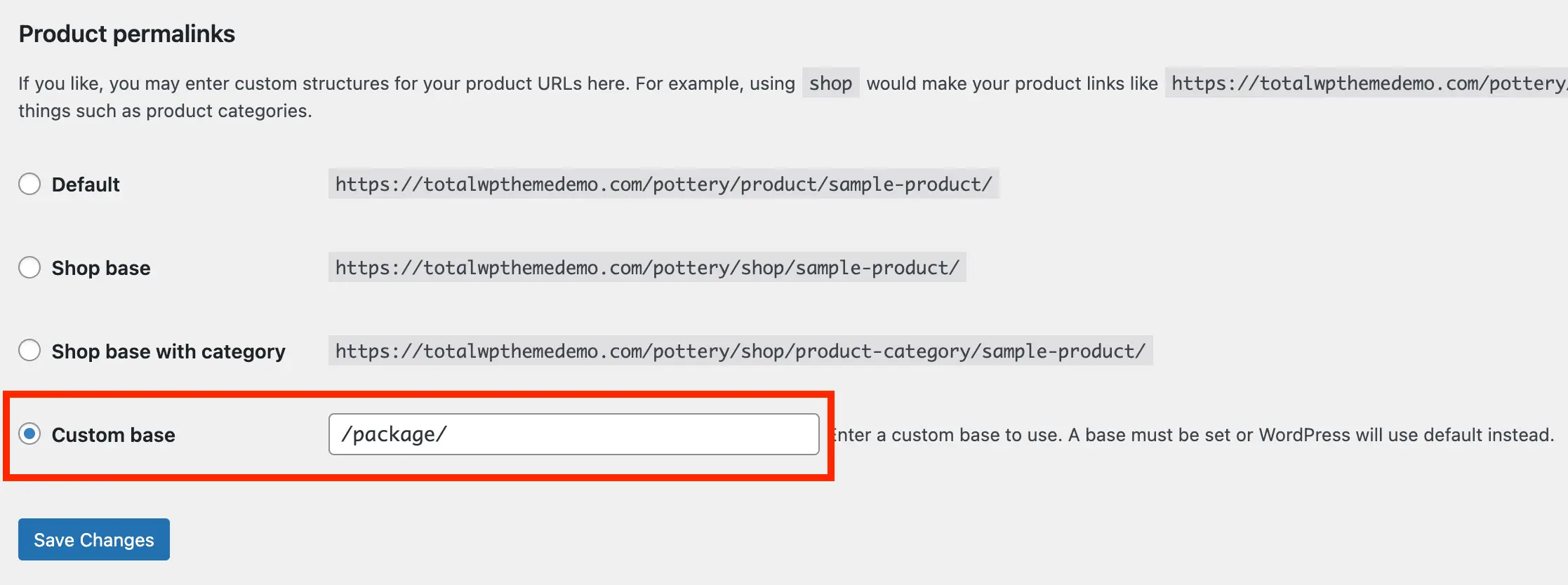
WooCommerce includes built-in settings that let you change the product permalink structure across your entire store.
Step 1: Open Permalink Settings
- Go to WordPress Dashboard → Settings → Permalinks
- Scroll down to the Product permalinks section
Step 2: Choose a Product Permalink Structure
WooCommerce offers four different options:
- Default
- Shop base
- Shop base with category
- Custom base
Choose the structure that best supports your SEO and branding goals.
If your goal is to change the default product word in the URL, choose the Custom base option. This setting allows you to enter the exact text you want to use in your product URLs.
For example, you can replace /product/ with a custom slug such as:
/shop/sample-product/If you want to include product categories in your URLs, you can combine a custom base with the product category placeholder, like this:
/shop/%product_cat%/sample-product/This approach lets you fully control your WooCommerce product URL structure while keeping it organized and SEO-friendly.
Step 3: Save Your Changes & Test
Click Save Changes at the bottom of the page.
WordPress updates the rewrite rules automatically and applies the new product URLs immediately. Make sure to visit a few products after making your changes to ensure they are displaying correctly and using the new permalink format.
Step 4: Add Redirects (Optional)
If your store is already live, changing the product slug will break existing product URLs unless you set up redirects.
To protect your search rankings and avoid lost traffic, create 301 redirects from the old URLs to the new ones. The most reliable way is server-side, either through your hosting provider’s dashboard or by editing your site’s .htaccess file. You can also use a plugin if you prefer a simpler (but less efficient) solution.
Skipping redirects can result in 404 errors, lost search rankings, and broken links, which can negatively impact both SEO and user experience.
Final Thoughts
Changing the product slug in WooCommerce gives you more control over your store’s URLs, branding, and SEO. The process takes only a few minutes, but the benefits can last long-term.
When making changes on a live site:
- Back up your store to ensure you can restore it if anything goes wrong.
- Modify the product slug in WooCommerce’s permalink settings.
- Add 301 redirects from the old product URLs to the new ones to preserve SEO and prevent broken links.
- Test your products to make sure they display correctly and that all redirects are working.
When done correctly, customizing your WooCommerce product slugs improves both search visibility and user experience.