By default in the Total theme if you have the WordPress SEO plugin by Yoast installed the theme will remove the built-in breadcrumbs and use the plugin’s breadcrumbs instead. So there is nothing to set up! However, here are a couple highly requested customizations:
Adding a Home Icon
If you wish to add an icon next to the home text, it’s possible but it’s a 2 step process that requires adding some code to your site.
Step 1:
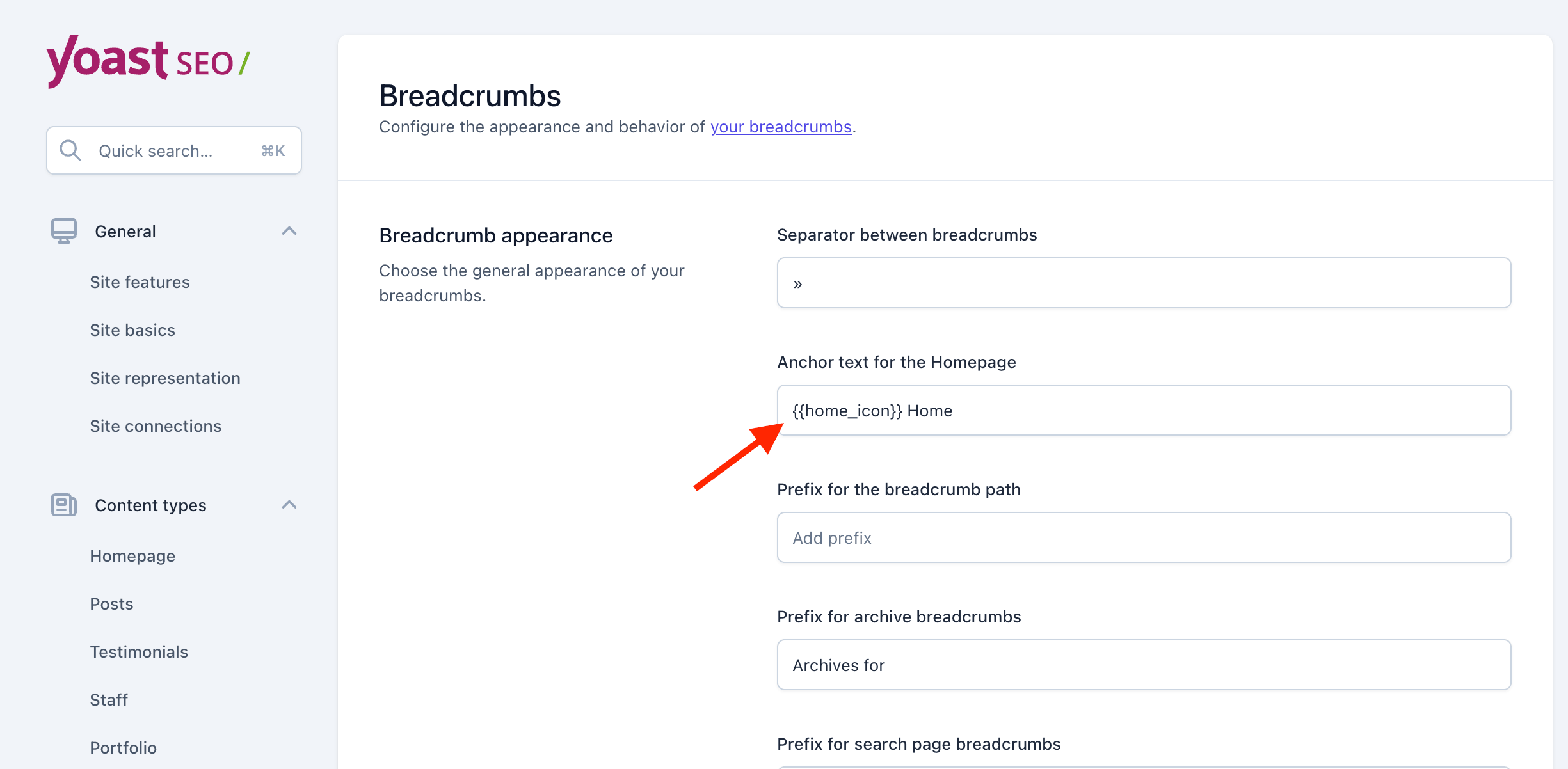
Add a placeholder for your icon to the “Anchor text for the Homepage” field in the Yoast SEO settings. I chose to use {{home_icon}} like such:
Step 2:
Now that we have a placeholder, we can use some code to convert the placeholder into an icon. To do so, we add the following code to our child theme functions.php file or to a code snippets plugin:
add_filter( 'wpseo_breadcrumb_single_link', function( $link, $breadcrumb ) {
	if ( $link && str_contains( $link, '{{home_icon}}' ) ) {
		$link = str_replace( '{{home_icon}}', do_shortcode( '[ticon icon="home"]' ), $link );
	}
	return $link;
}, 10, 2 );
Using a Theme Icon for the Separator Between Crumbs
If you wish to use an icon for the separator, unfortunately you can’t just insert a theme’s icon shortcode into the Yoast settings panel, but you can use a little code to modify the default separator.
Add this code to your child theme functions.php file or via a code snippets plugin:
add_filter( 'wpseo_breadcrumb_separator', function( $separator ) {
	$icon = 'angle-right';
	return do_shortcode( '[ticon class="yoast-breadcrumb-trail-separator" icon="' . $icon . '"]' );
} );
Simply change the icon name angle-right to whatever icon you wish to use. See the Total Icons List.
Styling the Breadcrumbs
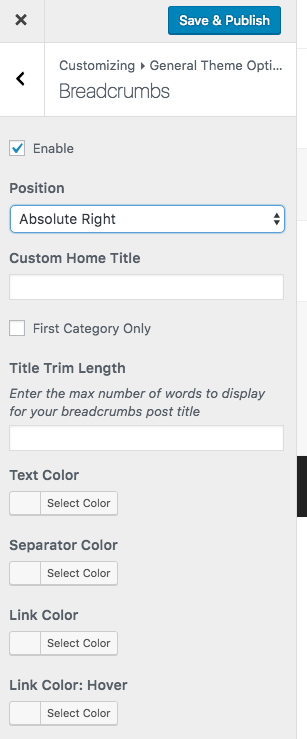
Styling the breadcrumbs is also possible via the theme. Simply go to Appearance > Customize > General Theme Options > Breadcrumbs to locate the various options for altering the colors of your Yoast SEO breadcrumbs.