By default, blog posts and custom post types display the published date in the meta section rather than the last modified date. However, if you’d prefer to show both dates, or display only the last modified date, you can easily do so without writing any custom code.
Display Last Modified Date in the Default Post Design
If you are using the default post design on your site, you can easily modify the meta “blocks” via the Customizer to control exactly what information is displayed. One of the available options is the last modified date.
For standard blog posts, go to Customize > Blog > Single Post, then scroll down to the Meta Sections option. From there, you can select which meta elements to show.
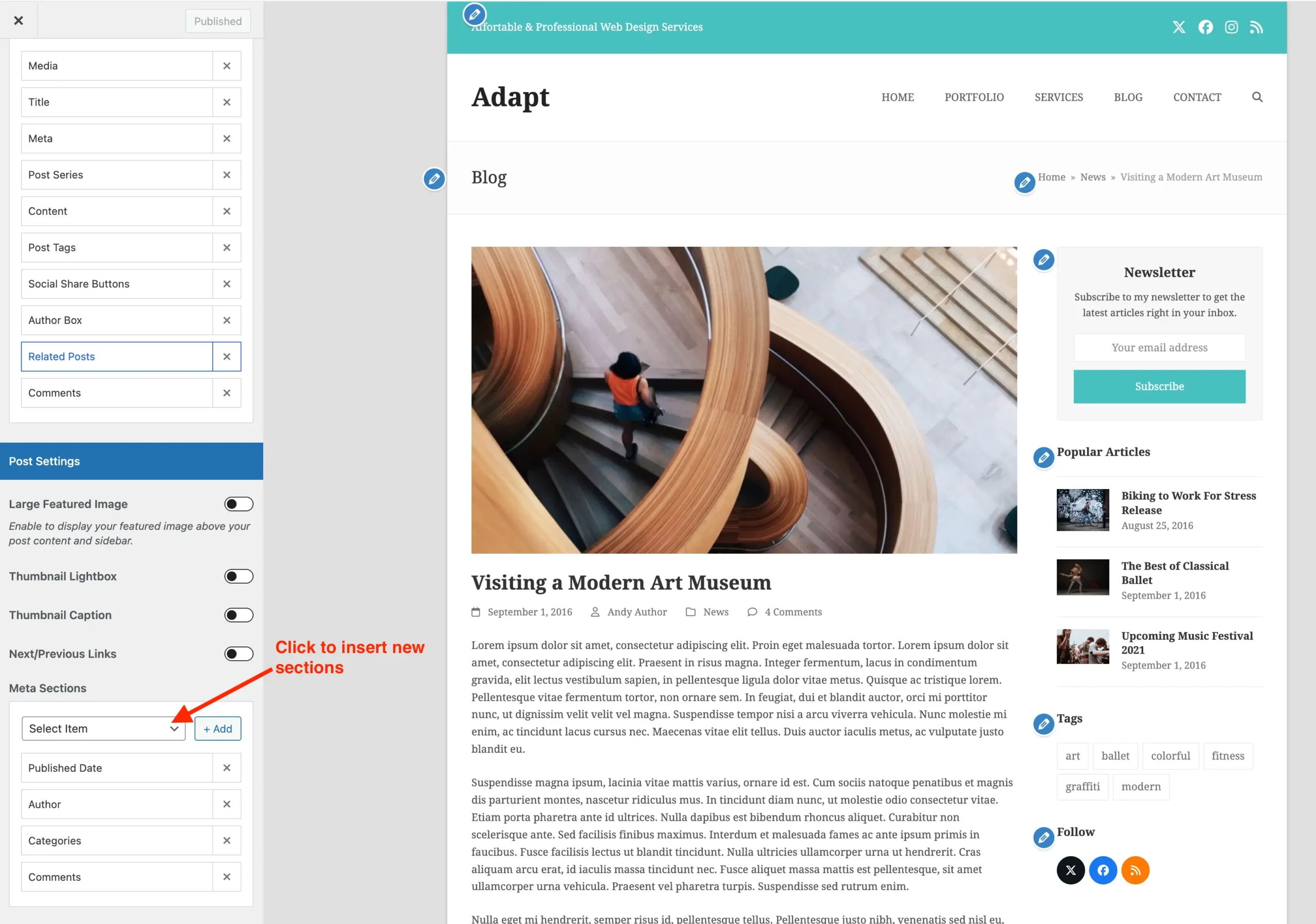
Post Entries Meta: If you are using the default blog post entries, you can also modify the entry sections under Customize > Blog > Archives & Entries. This allows your blog entries to match the meta layout used on the single post pages.
Display Last Modified Date in a Dynamic Post Template or Custom Card
If you want to display a post’s last modified date in a dynamic post template or custom card, you can do so easily in one of two ways:
- Post Meta Element: The theme’s Post Meta element lets you insert a meta section anywhere in your layout and choose from various meta options such as date, author, comment link, category, and more. This makes it easy to display the last modified date wherever needed.
- Dynamic Variable: You can also insert the
post_modifieddynamic variable anywhere you like, including within any element’s text field.