Total comes with the ability to update via 3 different methods. You can verify your theme license code and get update notifications in your dashboard, use the Envato Market Plugin which will also provide updates via your dashboard or you can update manually via FTP/SFTP. Please have a look below for instructions on each updating method.
Before Updating
Before updating your theme make sure WordPress is up to date and make sure you have a recent backup of your site. The Total theme makes use of new functions provided in WordPress to keep things optimized and up to date so it’s important that WP is updated as well.
You could do this after updating the theme as well, the important part is that it’s up to date. And you should always have backups of your site just incase there is ever an issue you can quickly revert back while you seek support.
Extra Precautions for Cautious Users or Extremely Outdated Installations
If you like to take extra precautions to ensure everything is as smooth as possible there are some extra precautions you can take. These are mostly recommended if you are updating from a version of the theme that is very old – sometimes customers don’t update for over 5 years and then run into some issues when updating so these steps can help (we recommend keeping the theme up to date though, this will prevent almost all headaches).
- Create a full backup of your site (you should always do this before updating any theme, plugin and WordPress).
- Deactivate all plugins
- Switch to the default WP theme
- Update WordPress
- Update your version of PHP to the latest available on your server
- Enable WP_Debug notices temporarily
- Update the theme (you will likely need to re-download from themeforest.net/downloads and update via WP by going to Appearance > Themes > Add New and installing the theme).
- Re-enable the theme
- Update all plugins
- Re-enable plugins one by one incase any causes issues
- Disable WP_Debug notices if you didn’t have any issues
How To Update Your Theme
It is very easy to update the theme and there are 3 options you can choose from, please have a look below:
Option 1: Dashboard > Updates (Recommended)
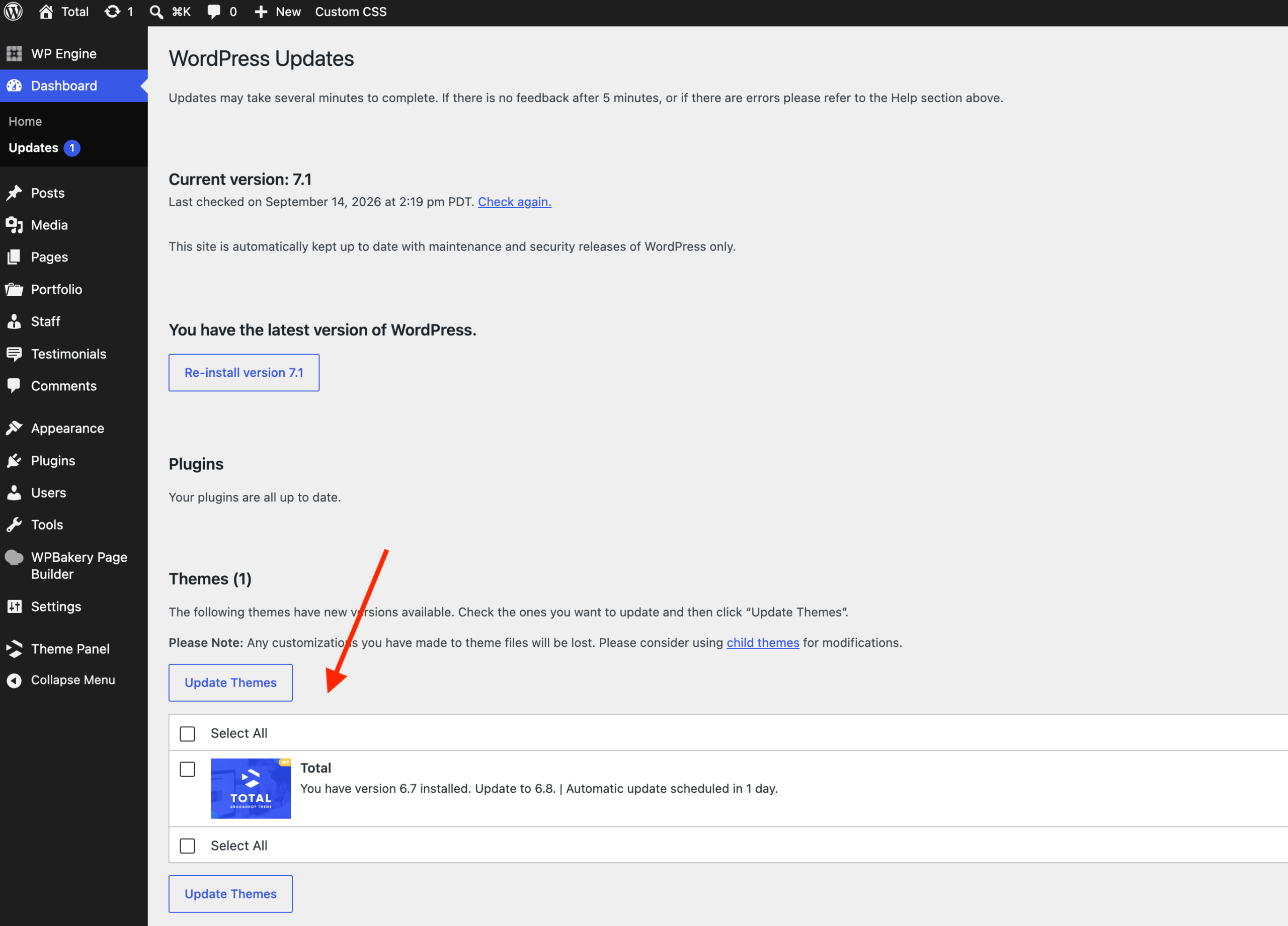
Once your license is registered the theme updates will show up automatically in the WP admin. Simply go to Dashboard > Updates and click the button to update you theme. This can also be done via Appearance > Themes.
Option 2: Manual Update
If you are having issues connecting to our servers or prefer to update manually you can as well.
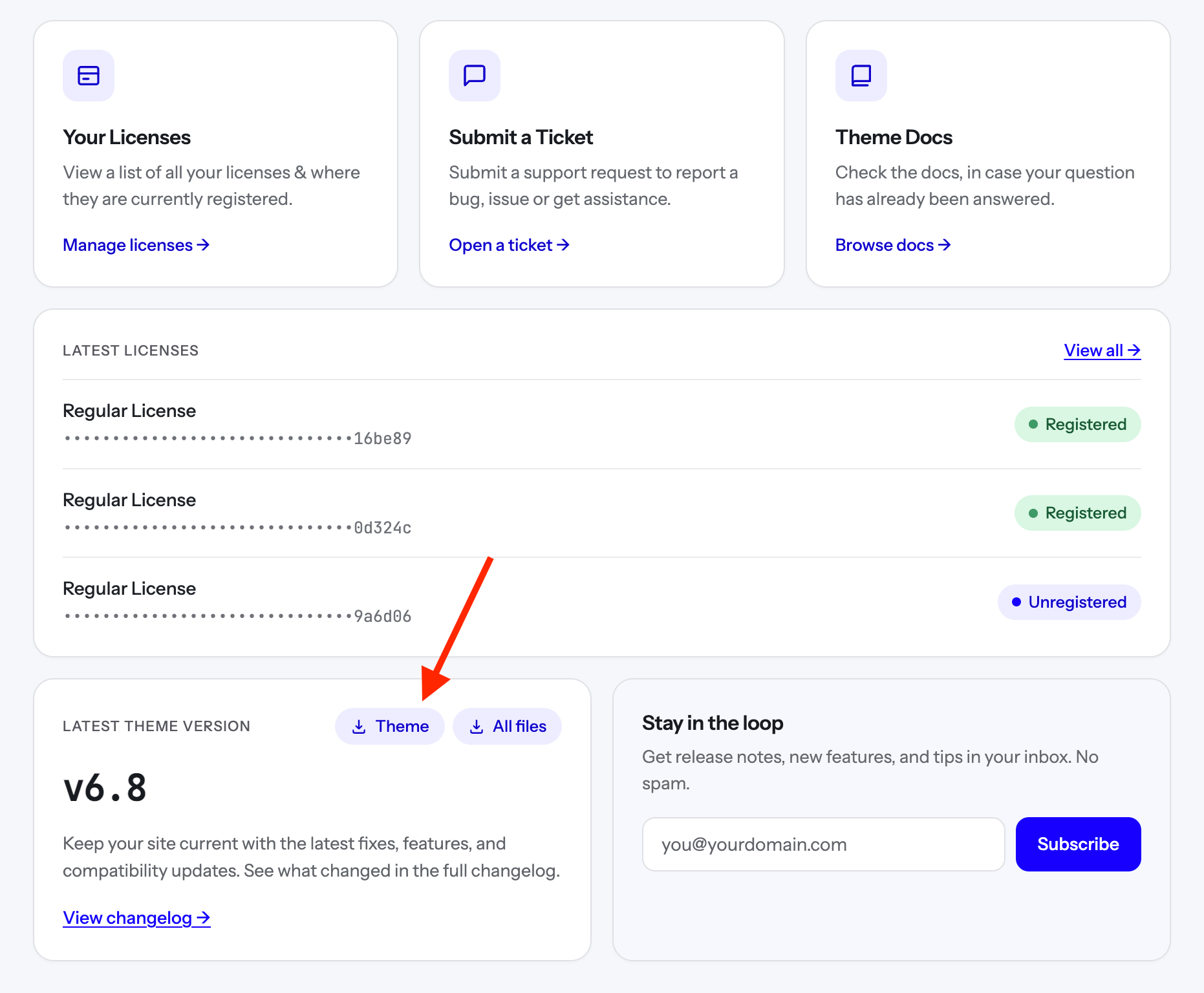
Log into the user portal at my.totalwptheme.com and scroll down a bit to reveal the download links for the latest version of the theme.
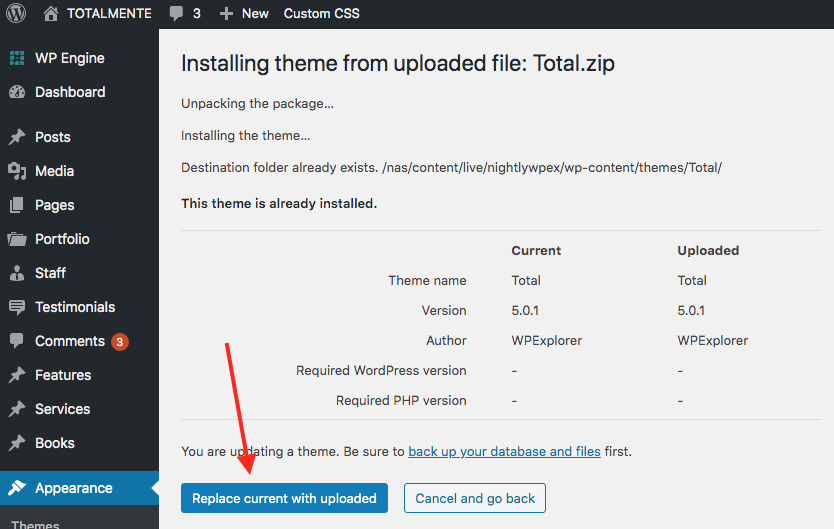
Once you’ve downloaded the latest version of the theme, log into your WordPress site and go to Appearance > Themes > Add New and select the Total.zip.
Once it uploads click to override the parent and you are good to go. You are basically going to follow the same steps as you would when installing the theme.
Option 3: Automatic Updates
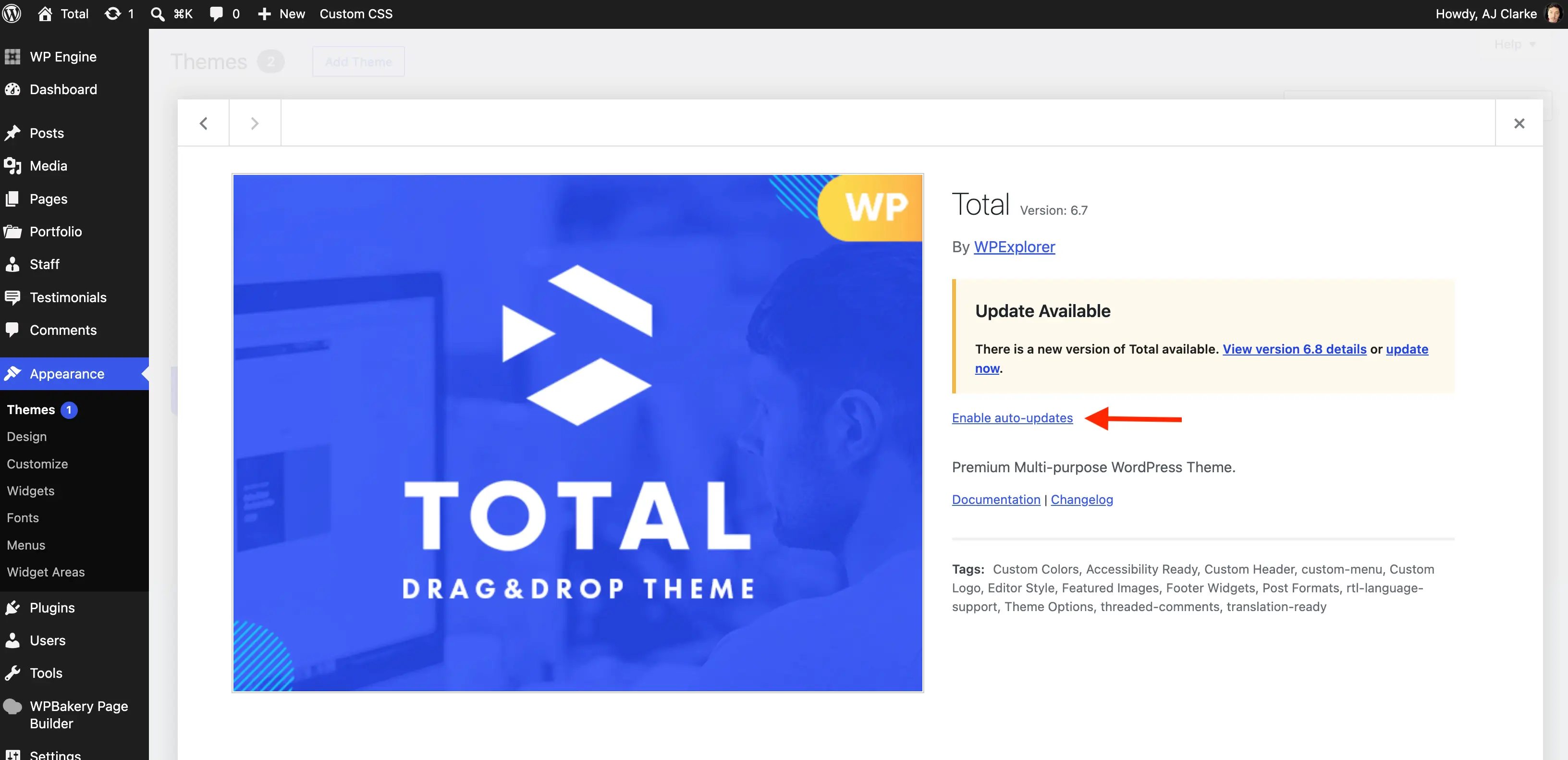
The Total theme does support automatic updates which you can enable via Appearance > Themes. However, it’s not generally recommended. Whenever you update your theme you will need to also update bundled plugins, clear your site cache and do a quick check of your site to ensure nothing went wrong.
You can read our article on Why You shouldn’t Enable Automatic Updates in WordPress for a complete explanation.
After Updating
After you are done updating your theme please also perform the following steps:
1. Clear your Site & Browser Cache
AFTER you update your theme you must clear all site and browser cache to prevent errors (this should be done when updating ANY theme or plugin). So, before getting into how to update your theme it’s really important you understand how to clear your cache. Please read or bookmark the links below so you know how to do this after updating.
2. Updating Bundled Plugins
After you update your theme please make sure to update the bundled plugins including the WPBakery page builder plugin, Slider Revolution and Total Theme Core.
See the guide on updating the theme’s recommended plugins.
If you update the theme and not the bundled plugins (that you are using) you may run into issues. But note, that there won’t always be an update required. If plugins are necessary you will see a notice in your WP admin.