Total includes several premium plugins at no extra cost: Total Theme Core (required), WPBakery Page Builder and Templatera. Sites that installed Slider Revolution while it was bundled continue to receive updates for it as well.
Because these plugins are bundled, they don’t come with their own plugin license. You don’t need one. Updates are provided through your Total theme license instead of by the plugin author, so the only requirement is that your license is active under Theme Panel > Theme License.

When Are Plugin Updates Released?
Each theme release ships with a specific, tested version of every bundled plugin. New plugin versions are made available when the theme is updated, never before, so a bundled plugin is always compatible with the theme version you are running. The theme changelog lists the plugin versions included with each release.
Where You’ll See Updates
When a bundled plugin update is available you’ll see it in all of the usual places:
- A “Theme plugin update available” notice at the top of your admin screens with an Update It Now link. The notice can be dismissed, but it returns on the next page load until the plugin is updated.
- Theme Panel > Plugins, where the plugin shows an Update Available badge along with the installed and available version numbers.
- Dashboard > Updates and the standard Plugins list, exactly like any other plugin update.

How To Update
Before updating, make sure you have a recent backup of your site!
Option 1: Theme Panel > Plugins (recommended)
- Go to Theme Panel > Plugins.
- Find the plugin marked Update Available under Bundled Plugins.
- Click Update.

The update runs in place and the row refreshes when it’s done. You can also install, activate and deactivate the bundled plugins from this screen.
Option 2: Dashboard > Updates or the Plugins list
Bundled plugin updates are registered with WordPress, so you can update them from Dashboard > Updates or from the Plugins screen the same way you update any other plugin.

Option 3: Automatic Updates
Because the updates go through WordPress, the standard Enable auto-updates link is available for each bundled plugin on the Plugins screen. This is optional.
Automatic updates are skipped while your theme license is inactive. The update still shows in your dashboard so you can activate your license and install it manually.

Note: We recommend leaving auto-updates disabled for the theme and bundled plugins. Updating manually lets you take a backup first, clear your site and browser cache right after, and check your site for any issues while the change is fresh.
Option 4: Manual Updates
If you are having issues connecting to our servers or prefer to update manually you can as well.
Log into the user portal at my.totalwptheme.com and scroll down a bit to reveal the download links for the latest version of the theme:
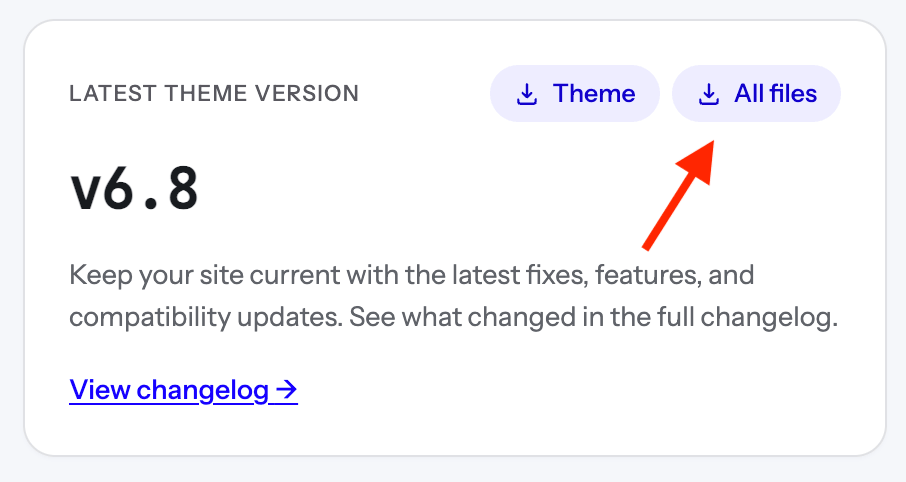
Click on the “All Files” link. Once it downloads, extract and locate the plugins inside the Plugins folder. You can then upload these via Plugins > Add New one at a time.
You can use this method as well to update via services such as ManageWP – although we’ve tested and ManageWP should work automatically via their dashboard.
WPBakery Theme Mode
If you have disabled WPBakery Theme Mode in the Theme Panel, because you purchased your own WPBakery license, WordPress won’t show the theme’s WPBakery updates. WPBakery will notify you of updates directly instead. You can still update WPBakery to the theme-tested version at any time from Theme Panel > Plugins.
WordPress Multisite
The Plugins panel lives in each site’s dashboard under Theme Panel > Plugins. There is no Network Admin version of it, and installing or activating a plugin from the panel applies to that site only.
Bundled plugin updates appear under Network Admin > Updates and Network Admin > Plugins only when Total is the active theme on your primary site. If Total is only used on subsites, update the plugins from the dashboard of a sub site running Total (via Theme Panel > Plugins or that site’s Dashboard > Updates). The updated plugin files are shared by every site on the network.
Troubleshooting
If an install or update fails, the error message will explain why. Most problems come down to one of the following:
- License required or rejected: Activate or re-activate your license under Theme Panel > Theme License. Make sure it’s registered to the correct domain.
- Could not connect to the download server: Your host must allow outgoing connections to my.totalwptheme.com.
- Version not available yet: The package for a brand new release can take a short while to become available. Try again later.
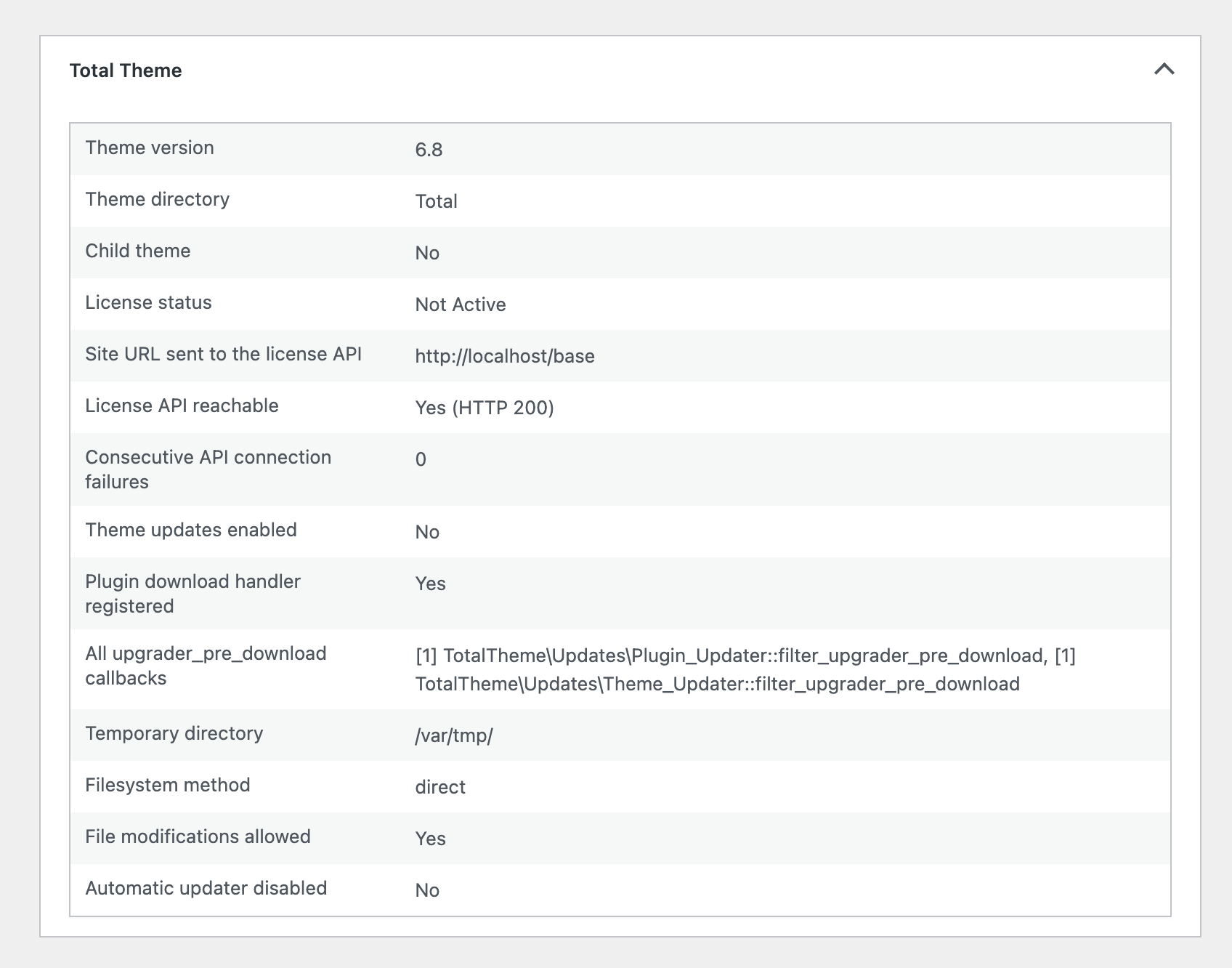
You can find more details under Tools > Site Health > Info > Total Theme, which reports your license status, the plugin versions and whether the download handler is registered.
Slider Revolution
Slider Revolution is no longer bundled with new installations. Sites that already have it installed continue to receive security updates for version 6 via Theme Panel > Plugins and the WordPress update screens as described above, but it can’t be installed from the panel on a new site. Read more: Why Slider Revolution is no longer bundled.