If you want a sleek way to collect user inquiries without redirecting them to a new page, the Totla theme makes it easy to create a popup (modal) contact form. Here’s how to set it up:
Step 1: Create a Modal Template
- Go to Theme Panel → Dynamic Templates in your WordPress dashboard.
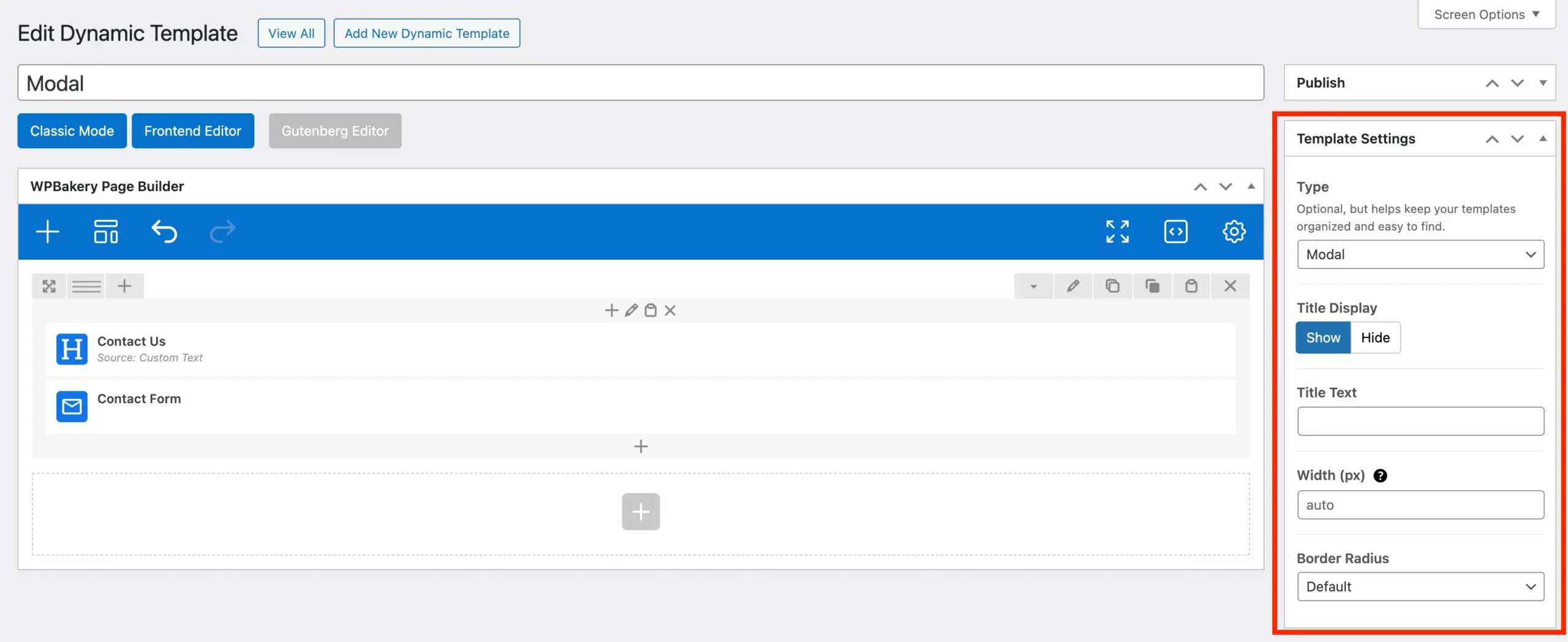
- Click Add New Template.
- Set the Template Type to Modal and give it a name like
Contact Form Modal.
Step 2: Add Your Contact Form
- Edit your new modal template.
- Add the Total Contact Form element, or insert a 3rd-party form shortcode (like Contact Form 7, WPForms, Gravity Forms, etc).
- If using a 3rd-party form, it’s recommended to enable sending the form via AJAX so that the form can submit without reloading the page. This ensures a smooth experience inside the modal popup.
- Style the modal as needed.
Step 3: Add the Button to Your Site
- Edit the page, header, or section where you want the button.
- Insert a Button element.
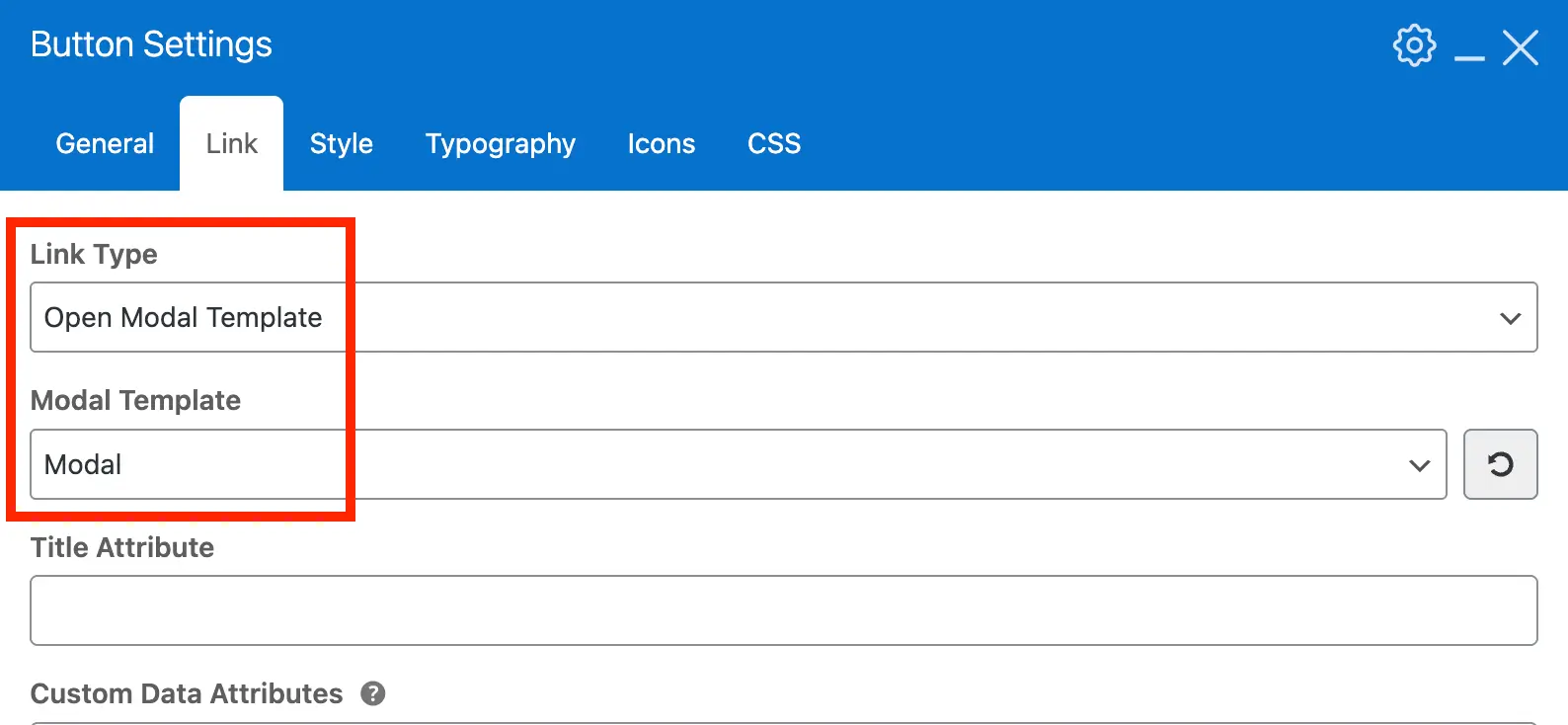
- In the button’s Link tab, set Link Type to Open Modal Template and select your modal template.
- Save and preview — clicking the button should open your contact form in a modal popup.