By default the Total theme displays a little bio under the blog posts with the author information like the screenshot below:
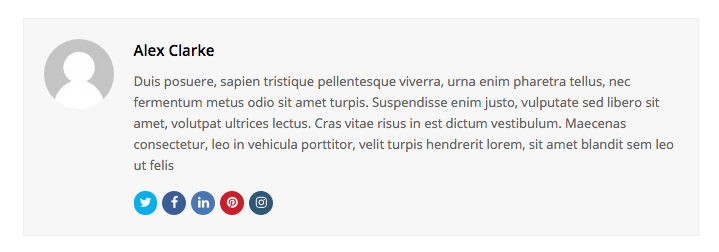
If your site is using the default post design and you don’t see the author bio, you can add it to your post layout via the Customizer at Appearance > Customize > Blog > Single Post > Single Layout Elements.
In Total you are not “stuck” with the default blog post design you can actually create custom blog post templates for your blog posts. When doing so you can use the Author Bio element to display the author’s information but you can also use other elements along with dynamic data – for example, you can insert the theme’s Image element and have it display the author’s avatar or you can insert the heading element and set it to display the post author name.
Setting the Author Avatar
The author avatar is normally provided by Gravatar, which is integrated into WordPress. However, using Gravatar means that visitors’ browsers may need to make requests to an external service to load the avatar. This can have privacy implications, particularly for sites that need to consider GDPR and other privacy requirements, and can also add an additional external request when loading your pages.
For this reason, we recommend using a locally hosted avatar instead.
Using a Local Avatar
The easiest way to add locally hosted avatars to WordPress is with the free Simple Local Avatars plugin. The plugin adds an Avatar field to user profiles where you can upload an image directly to your WordPress site. It stores the avatar in your site’s media uploads and generates the required image sizes as needed.
After installing and activating the plugin:
- Go to Users > Profile (or edit the appropriate user under Users > All Users).
- Scroll down to the Avatar section.
- Upload your desired profile image.
- Save the user profile.
Simple Local Avatars can also be configured to disable Gravatar entirely, ensuring that your site does not fall back to requesting avatars from Gravatar when a local avatar is not available.
Using locally hosted avatars keeps the images on your own website and avoids the need for an external Gravatar request, making it a good choice for privacy-conscious websites